Track Mixer
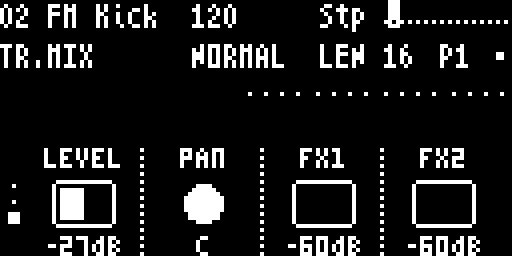
The Track Mixer screen shows the active track’s mixer parameters: level, pan, and FX sends. Access it by pressing FUNC3 twice from the Sound screen.
Navigation
FUNC3— cycle to Track Mixer (Sound → Track Mixer → Track)- Knobs 1–4 — adjust the mixer parameters
- ←/→ — switch active track
Parameters
The Track Mixer displays the per-track mixer parameters defined by the preset (typically 4):
| Knob | Typical Parameter | Description |
|---|---|---|
| Knob 1 | Level | Track output volume — squared fader: wire 0 = off, wire 64 (default) = 0dB unity, wire 127 = +12dB |
| Knob 2 | Pan | Stereo position (0–127, 64 = center) |
| Knob 3 | FX1 Send | Amount sent to FX1 (Delay) bus, 0–127 |
| Knob 4 | FX2 Send | Amount sent to FX2 (Reverb) bus, 0–127 |
Level reads as honest dB. The same squared fader curve is used everywhere — per-track LEVEL, FX returns, Master Volume — so 0dB means the same thing on Track Mixer, on the Mixer page, and on Master Output. Defaults boot at unity (wire 64), so a fresh kit doesn’t slam the soft-clip stage.
The exact parameter names and count come from the loaded preset. The shortnames shown on screen are defined by the preset data.
Parameter Display
Each parameter shows:
- Short name from the preset
- Current value (formatted by parameter type)
mprefix if MIDI-mapped (e.g.,m64)<indicator if a step parameter lock is setL=orR=prefix for LFO or random automation
Per-Step Mixer Locks
Just like sound parameters, mixer parameters support parameter locks — hold a step button and turn a mixer knob to set a per-step value. Click the knob while holding a step to clear the lock.
Muting Tracks
The Track Mixer does not have a dedicated mute switch — muting is handled at the sequencer level on the Patterns & Mutes page. Press FUNC4 and use the step buttons (1–16) to toggle mute per track, or hold FUNC3 to use the Track Select Overlay.