Patterns & Mutes
The Pattern Select screen manages pattern assignment and track muting. Access it with FUNC4.
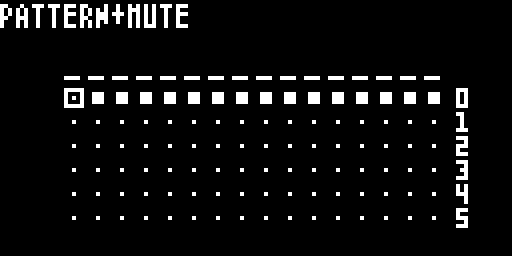
Screen Layout
The screen title shows PATTERN+MUTE and displays:
- Top row — track activity bar showing trigger activity and mute status for all 16 tracks
- Grid — 16 columns (tracks) × 6 rows (pattern slots). Slots that contain notes show a small + marker; empty slots show a single dim pixel. The active pattern for each track is highlighted, and a cursor indicates the selected row.
- Row numbers (1–6) displayed at the right edge
Pattern Selection
Each track has 6 pattern slots (rows 1–6). The cursor moves between rows to select which pattern to activate.
| Action | Result |
|---|---|
| ↑/↓ | Move cursor between pattern rows (1–6) |
| ←/→ | Switch active track |
| FUNC5 click | Activate the cursor row pattern for the active track |
| FUNC5 long press | Activate the cursor row pattern for ALL tracks |
Track Muting
Muting silences a track without changing its pattern or sequence. Mutes are live-performance tools — use them to drop tracks in and out while the sequencer keeps playing.
The step buttons (1–16) toggle mute on the corresponding track. Each LED shows two pieces of information at a glance — colour for mute state, brightness for whether the track holds a pattern:
| LED | Meaning |
|---|---|
| Bright green | Unmuted, track contains notes |
| Dim green | Unmuted, track is empty |
| Bright red | Muted, track contains notes |
| Dim red | Muted, track is empty |
| White flash | A trig fired on this step (overrides green or red briefly — fires for muted tracks too, so you can see what’s playing under the mute) |
Mutes are stored per-project and persist across save/load. They are independent of pattern selection — switching patterns does not change the mute state.
Muting is also available via the Track Select Overlay (hold FUNC3). Both mute methods control the same underlying state, and the LED hints (bright vs dim, white-flash trigs) read identically there.
Track Select Overlay
Hold FUNC3 to open the Track Select Overlay, showing all 16 tracks with their activity status:
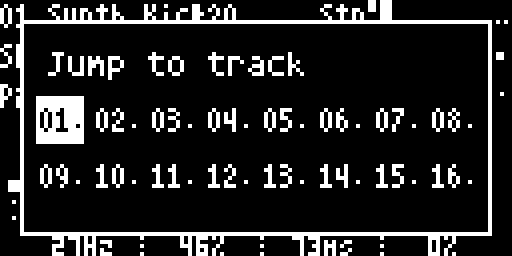
- Press a step button to jump to that track
- LEDs follow the same convention as PATTERN+MUTE: bright green (unmuted, has notes), dim green (unmuted, empty), bright red (muted, has notes), dim red (muted, empty), white flash on every trig