Step Editing
The Step Editor fine-tunes individual steps — per-step note, velocity, chance, gate length, repeats, and chord notes. Most users program with the 16 step buttons plus Parameter Locks and rarely need the Step Editor; reach for it when you want expressive detail on a specific step.
Accessing the Step Editor
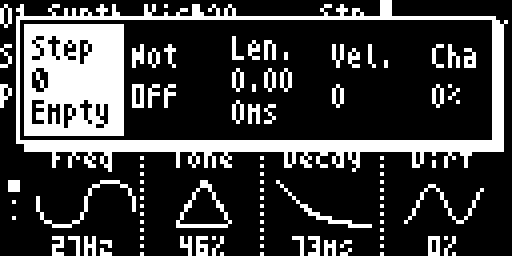
From the Sound screen in Stp mode, hold a step button (long press) to open the Step Overlay for that step.
Step Overlay Parameters
The overlay shows 8 editable parameters in a horizontal row. Use ←/→ to select a parameter and knobs or ↑/↓ to adjust the value.
| # | Label | Description | Range | Default |
|---|---|---|---|---|
| 1 | Step | Step status | Note / Empty | — |
| 2 | Not | MIDI note number | 0–127 (displayed as note name, e.g., C#3) | — |
| 3 | Len. | Gate duration | 1–64 substeps (displayed as ratio + ms) | Default gate |
| 4 | Vel. | Velocity | 0–127 | 100 |
| 5 | Cha | Chance | 0–100% | 100% |
| 6 | Rep. | Repeat (retrigger) | 1–7 | 1 |
| 7 | RNot2 | Relative note 2 (chord) | −96 to +96 semitones | 0 (off) |
| 8 | RNot3 | Relative note 3 (chord) | −96 to +96 semitones | 0 (off) |
Resetting Parameters
Click the knob on any selected parameter to reset it to its default value:
- Duration → default gate substeps
- Velocity → 100
- Chance → 100%
- Repeat → 1
- Note 2/3 → 0
Toggling Steps
With the Step column selected, press ↑/↓ to toggle the step between active (Note) and cleared (Empty).
See also
- Parameter Locks — per-step sound and mixer parameter automation (the workflow most users use instead of the Step Editor)
- Patterns & Mutes — pattern slots and track muting