Sound Parameters
The Sound screen is the primary view for editing the active track’s synth engine. It displays four parameters per page, one per knob.
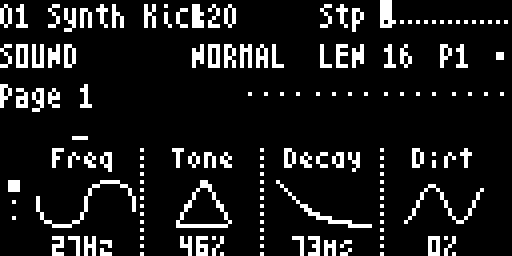
Access
FUNC3— enter Sound screen (cycles: Sound → Track Mixer → Track)FUNC2— return to Sound from any system screen
Navigation
- ↑/↓ — switch between parameter pages
- Knobs 1–4 — adjust the four parameters shown on screen
- Hyper + Turn — fine-tune (±1 per click, no acceleration)
- ←/→ — switch active track
Parameter Pages
The number of pages, page names, and parameter names are defined by the loaded Macro. Different Macros expose different parameters. A typical preset might have pages like:
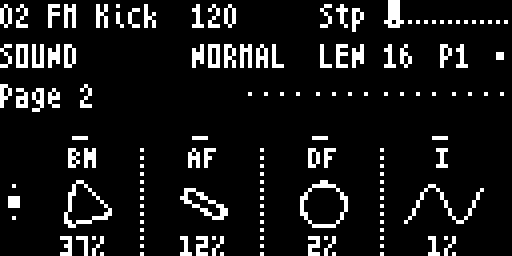
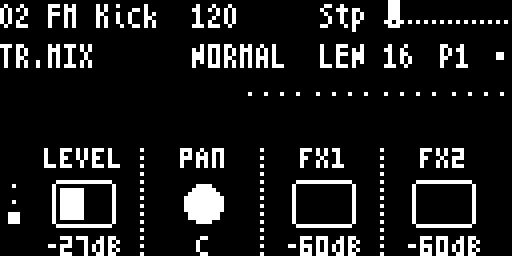
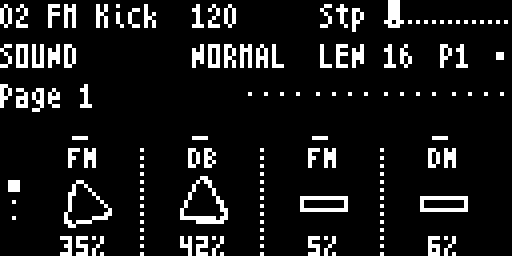
Each page shows up to 4 parameters. The page name appears at the top of the screen, and page indicator dots at the bottom show your current position. Presets can have up to 6 pages (24 parameters).
Parameter Display
Each parameter shows:
- Short name — abbreviated label from the preset definition
- Value — formatted according to parameter type:
- Level / Volume —
offat the bottom,0dBat unity (the default for most level knobs), up to+12dBat the top. Same fader curve everywhere — see Signal Flow for why this is consistent across track LEVEL, FX returns and Master Volume. - Filter cutoff —
20Hzto20.0k - Pan —
L50/C/R50 - Bipolar / scale / on-off parameters — render as appropriate for their type (e.g.
±50%,1/4,on/off)
- Level / Volume —
- Automation prefix —
Lfor LFO,Rfor random modulation - Lock indicator —
<appears when a step has a parameter lock set
Parameter Locks (P-Locks)
Parameter locks let you set per-step parameter values, creating evolving, dynamic patterns.
To set a parameter lock:
- Hold a step button (long press)
- While holding, turn any knob to set that parameter’s value for that step
- Release the step button — a
<indicator appears on the parameter display
To clear a parameter lock:
- Hold the step button and click the knob — clears the lock for that specific parameter on that step
To clear ALL automation for a parameter:
- Long press a knob — opens a confirmation screen to clear all automation and locks for that parameter
During playback, locked steps override the track’s default parameter value for that specific step.
Parameter Automation
Press a knob (without holding a step) to open the automation overlay for that parameter:
- LFO — continuous modulation with configurable speed, amount, period, and reset behavior (shown as
Lprefix on value) - Random — randomized modulation per interval (shown as
Rprefix on value) - None — disable automation (fixed value)
See Step Editing for LFO and random parameter details.
MIDI CC Mapping
Shift + knob press opens the MIDI CC mapping overlay, letting you assign an external MIDI CC to control that parameter.
To change which Machine is loaded on the track, or to browse and save sound presets, see Macros & Presets.